Start browsing
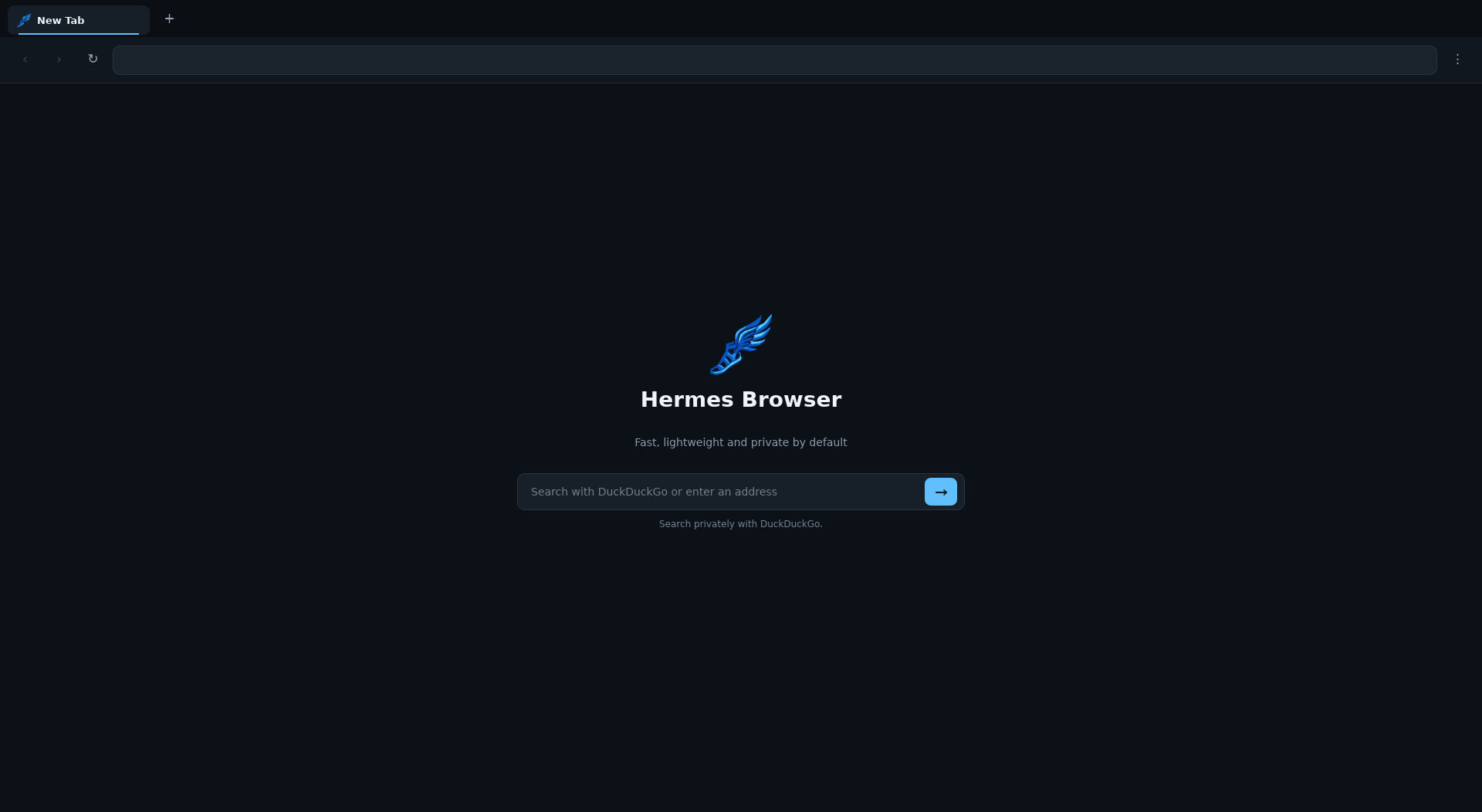
Hermes opens with a clean new tab. The address bar accepts both web addresses and ordinary search terms, so there is no separate search box to learn.
Open a website
Enter any of these forms in the address bar and press Enter:
When a hostname has no scheme, Hermes adds https:// automatically. Explicit http://, https://, and about: addresses are supported.
Search the web
Enter words that do not look like a hostname:
Hermes sends the query to DuckDuckGo. Search is a normal navigation, so the resulting page appears in the tab's history.
Read the navigation state
While a page is loading, Hermes keeps the address, title, icon, history controls, and loading feedback in sync with Servo. Back and forward buttons become available only when that direction exists in the tab's history.
If a title changes but the page remains blank, the network and script stages may have succeeded while painting failed. See A page stays blank.
Work with tabs
- Use the + button or Ctrl+T to open a tab.
- Click a tab to select it.
- Use its close control or Ctrl+W to close it.
- Use Ctrl+Tab to move forward and Ctrl+Shift+Tab to move backward.
Hermes keeps one Servo WebView per tab. A background WebView is throttled when it is no longer visible, then resumed when you return to it.
Note
Hermes always keeps at least one tab open. Closing the final remaining tab has no effect.